
Preparing files for translation: a short checklist
A little preparation before you send documents saves time, avoids layout trouble and gives the translator what they need to get the wording right.
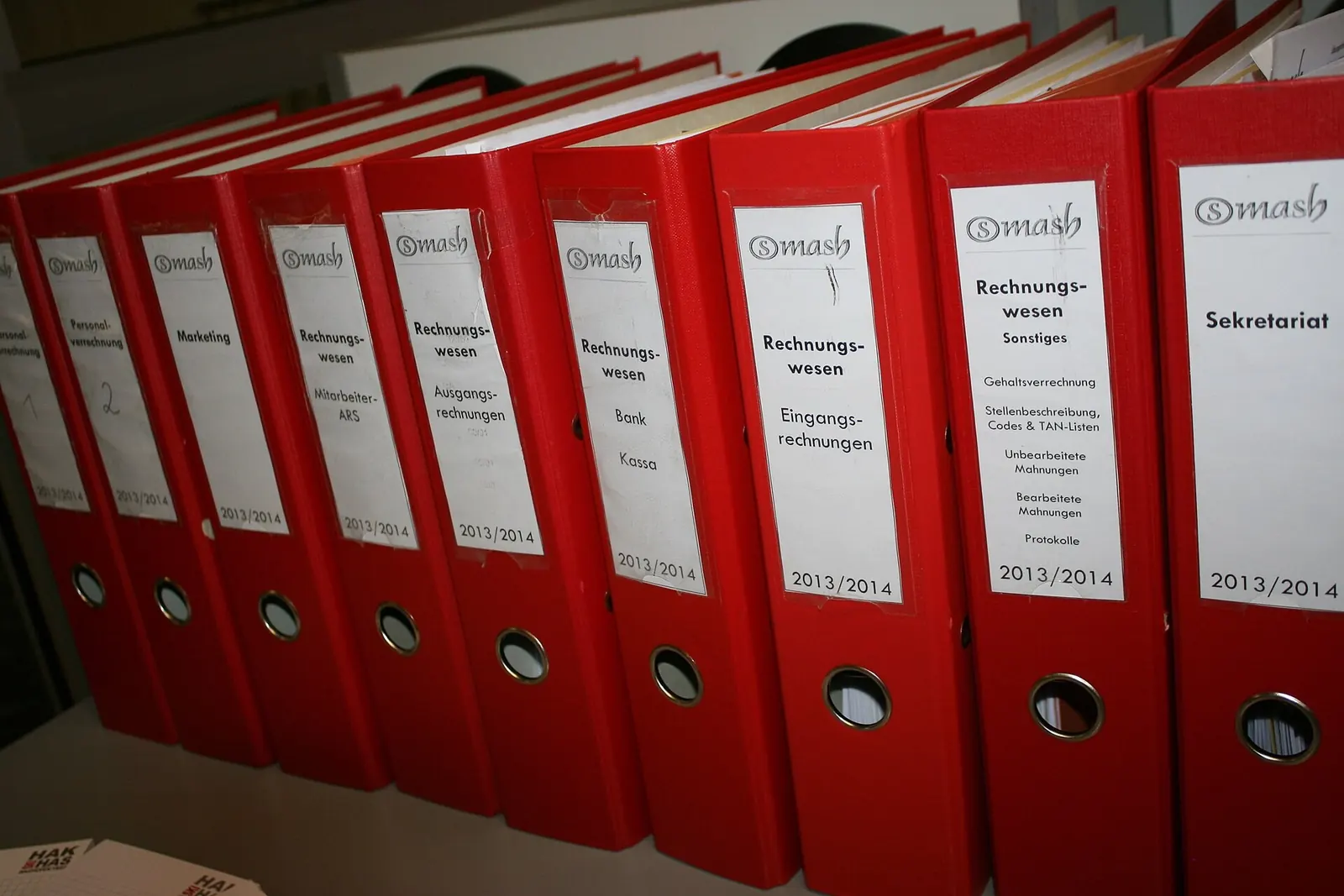
Most delays in a translation project do not come from the translating. They come from files that are hard to open, text that cannot be copied, or missing background that only surfaces halfway through. A few minutes of tidying up at the start usually pays back many times over.
This page walks through what to send, what to check and which formats cause the most trouble. For the wider process, see how translation projects work.
Send the editable original
The single most helpful thing you can do is send the file that the document was created in. A Word document, a spreadsheet, a slide deck or a design file lets the translator work directly in the text and keep the layout intact.
- Word processors: send the .docx (or the equivalent in your software), not a printout scanned back in.
- Websites and apps: send the text export, resource files or a content spreadsheet rather than screenshots. See localisation for websites for more.
- Design files: send the native file along with a PDF showing how it should look.
If an editable original no longer exists, say so. The translator can then plan for extra time to extract the text.
Check for text inside images
Text that is part of a picture cannot be searched, copied or edited. Diagrams, charts, screenshots, logos with slogans and scanned pages all fall into this group.
Do a quick check: try to select the text with your cursor. If you cannot, it is probably an image. Your options are:
- Send the layered source file where the text still exists as text.
- Provide the wording in a separate list, so it can be translated and placed back.
- Ask for the image text to be translated in a table, with the redesign handled by your own designer.
Whichever you choose, mention it early. Recreating graphics is design work, not translation work, and it helps to know who is doing it.
Common problems by file type
PDFs
PDFs are made for reading, not editing. Converting one back to a word processor file often breaks paragraphs, scrambles tables and splits sentences across lines. Scanned PDFs are worse: they are pictures of pages, and character recognition can misread numbers, accents and unusual fonts.
- Send the original file whenever possible, with the PDF as a visual reference.
- If only a scan exists, make it as clear and straight as you can, at a readable resolution.
- Flag handwritten notes, stamps and signatures so they are not overlooked.
Spreadsheets
Spreadsheets hide things. Text may sit in hidden sheets, comments, cell notes, headers, footers or chart labels. Formulas that build sentences from several cells can produce odd results when the word order changes in another language.
- Tell the translator which sheets and columns need translating, and which should be left alone.
- Unhide sheets and mention comments or notes that contain wording.
- Avoid sentences stitched together from separate cells where you can.
- Leave extra room in columns. Translated text is often longer than the original, and German, for instance, tends to produce long compound words (see German translation notes).
Presentations
Slides have little space and a lot of hidden text. Speaker notes, alt text, text on the master slide and labels inside grouped shapes are easy to miss. Text that expands in translation can overflow boxes, so the layout may need small adjustments afterwards.
- Send the .pptx or equivalent, not an exported PDF.
- Say whether speaker notes should be translated.
- Embedded charts and pasted pictures of tables count as images, so treat them as above.
Include reference material
Words rarely mean the same thing everywhere. Context lets the translator choose correctly the first time. Useful extras include:
- Earlier translations of similar documents.
- A glossary or style guide, even a short one.
- Product names, abbreviations and terms that should stay in the original language.
- A note on the audience and purpose: who will read this, and what should they do afterwards?
- Links to related websites, manuals or drawings that explain the subject.
For legal and technical material, background matters even more. Our page on contracts and technical documents explains why.
Clean up before sending
- Accept or reject tracked changes, or say which version is final.
- Remove duplicate drafts so the translator is not working from an old copy.
- Check that the text is complete, with no placeholder passages left in.
- Name files clearly, with a version or date.
- Note the target language and variety, such as European or Brazilian Portuguese (see Spanish and Portuguese notes).
Be clear about the deadline
A date alone is not enough. Say what time and time zone, whether the deadline is for a first draft or the finished version, and whether you need to review it before use. If the document arrives in parts, share a rough schedule.
It also helps to say whether the text may still change. Late edits are normal, but they work best when they are sent as a marked-up list or tracked changes rather than a fresh file with no indication of what moved.
If a review step is involved, allow time for it. Proofreading and editing is a separate stage, and rushing it tends to show.
A quick final checklist
- Editable files attached, with a PDF for reference.
- Text in images identified and handled.
- Hidden sheets, notes and comments flagged.
- Glossary, earlier translations and context included.
- Final version confirmed and files named clearly.
- Target language, audience and deadline stated.
Not sure whether your files are ready? Send a sample and ask. A short question at the start is far easier than a rework at the end, and you can reach us through the contact page.